If you use Excel every day, you’ll know how easy it is for errors to slip into a spreadsheet.
This happens often with my students.
They tell me they feel nervous that a formula might be wrong, that a number could be incorrect, or that they might share a report that doesn’t quite add up.
And that nervous feeling is important, because mistakes in Excel can have real consequences.
This is where Copilot in Excel can be incredibly reassuring.
You can think of it as a calm, second set of eyes that helps you check your work before you share it with a manager, a client, or your team.
In this post, I’ll show you how to use Copilot in Excel to scan a worksheet, find formula errors, and, if your licence allows, fix those errors for you.
This is exactly the process I recommend using before you share any important spreadsheet.
If you’re new to Copilot or still building confidence with Excel, my courses are designed specifically for everyday business users.
Excel Practice Files
What Is Copilot in Excel?
Copilot in Excel is an AI‑powered assistant built into Microsoft Excel.
Its role is to help, not replace you.
You ask it questions in plain English, and it looks at your worksheet to provide feedback, suggestions, or actions.
When it comes to errors, Copilot can:
- Review an entire worksheet.
- Identify formula problems
- Flag hard‑coded values
- Point out inconsistencies
- Fix issues (with the right licence and permission)
If you’re unsure how this looks in practice, the examples below will make everything much clearer.
Important note about Copilot: Copilot is still growing and changing. Microsoft regularly updates how Copilot works, what it can see, and what actions it can take inside Excel.
Because of this, the Copilot results shown in this blog and in the accompanying video reflect how Copilot worked at the time they were recorded. As Copilot continues to improve, you may see slightly different wording, options, or results when you use it yourself.
The overall approach and ideas here are still valid, but your experience may not look exactly like mine. That’s completely normal.
When Copilot Is Most Helpful for Error Checking
Copilot really shines when:
- A worksheet has been worked on by multiple people.
- Formulas have been copied, edited, or overwritten.
- You’re inheriting someone else’s spreadsheet.
- You think something might be wrong, but can’t immediately see it.
Copilot offers needed reassurance when things seem off.
Using Copilot doesn’t reflect your Excel skills.
It’s about working smarter and reducing risk using the tools available.
How to Use Copilot in Excel to Check for Errors (Chat)
Scenario
You’ve finished a spreadsheet and want reassurance that everything is correct before sharing it.
You might not want Copilot to change anything yet; you just want a review.
Steps
- Go to the Home tab in Excel.
- Click the Copilot button.
- Select “Chat only”

- In the Copilot pane, click into the message box.
- Type your prompt, e.g. Please check my worksheet for errors and let me know what needs fixing.
- Click Send.

What Happens Next
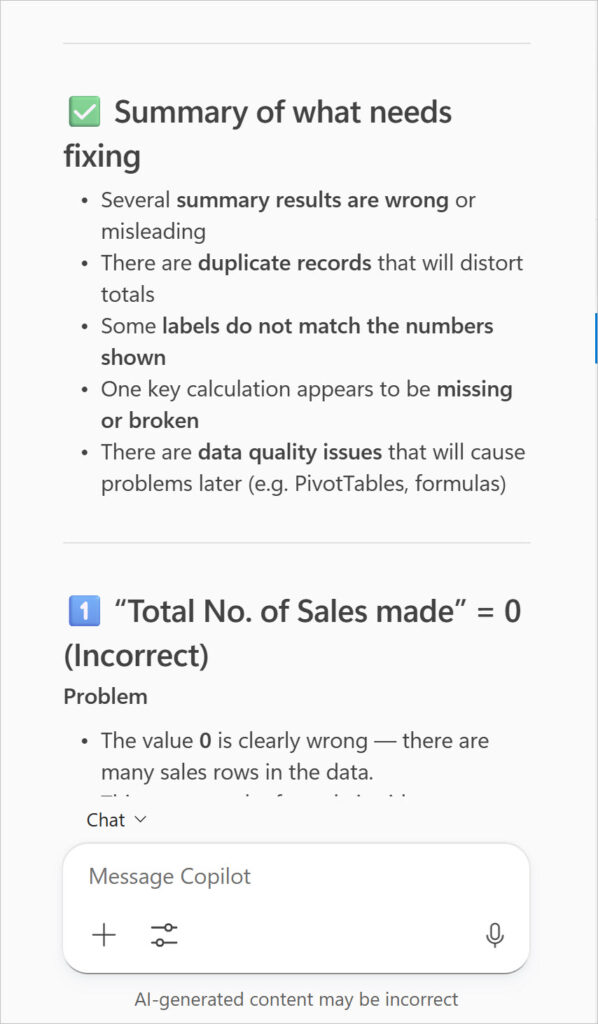
Copilot scans the entire worksheet.
It then returns a structured summary in the pane, listing:
- The number of issues found
- Each issue is explained step‑by‑step.
- What looks incorrect and why
In the example shown, Copilot has identified several issues across the worksheet.
Why This Is Helpful
This gives you:
- A clear checklist
- No guessing
- No hunting through formulas cell by cell
You stay in control and decide what to change.
Quick Notes
- Copilot’s Chat option will not change your worksheet.
- It’s perfect if you only want a review.
- Ideal for cautious checks before edits.
How to Use Copilot in Excel to Fix Errors Automatically (Allow Editing)
Scenario
You trust Copilot’s findings and want help efficiently fixing everything.
Important Licensing Note: If you only see chat-based responses and do not have the option to use “Allow editing”, your Microsoft 365 licence currently does not support Copilot making direct changes to your worksheet. Only licenses with Copilot editing permissions can use this feature to automatically apply fixes.
Steps
- On the Home tab, click the Copilot button to open the Copilot pane.
- Switch to Allow editing mode.

- Type your prompt, e.g. Please check my worksheet for errors and let me know what needs fixing.
- Click Send.
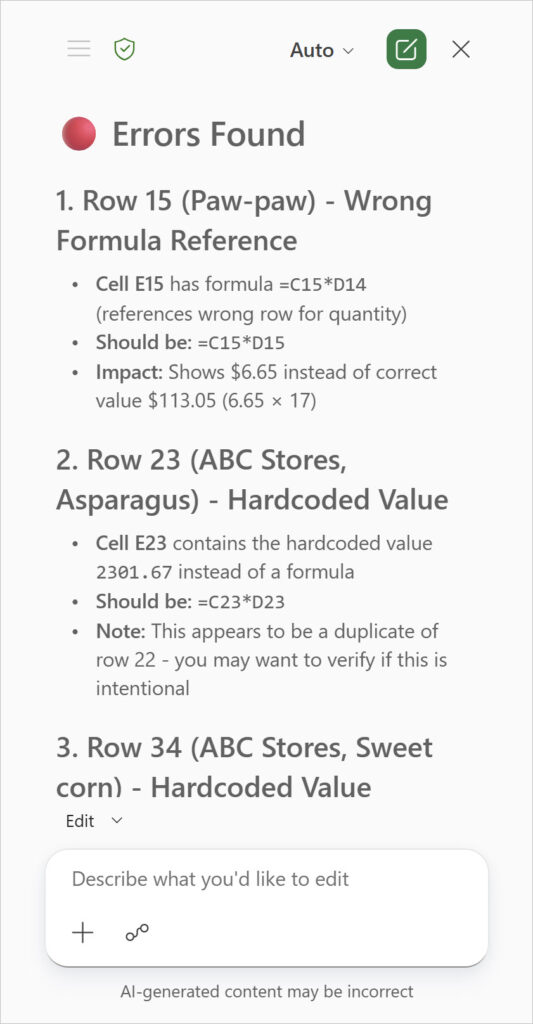
What Copilot Shows You
Copilot analyses the worksheet and returns a summary that can include:
- Cell reference
- Description of the issue
- Current formula
- Suggested corrected formula
Common issues flagged include:
- Incorrect formulas
- Hard‑coded values where formulas should exist
- Data entered incorrectly
All of these are shown clearly before any changes are made.
Fixing the Errors
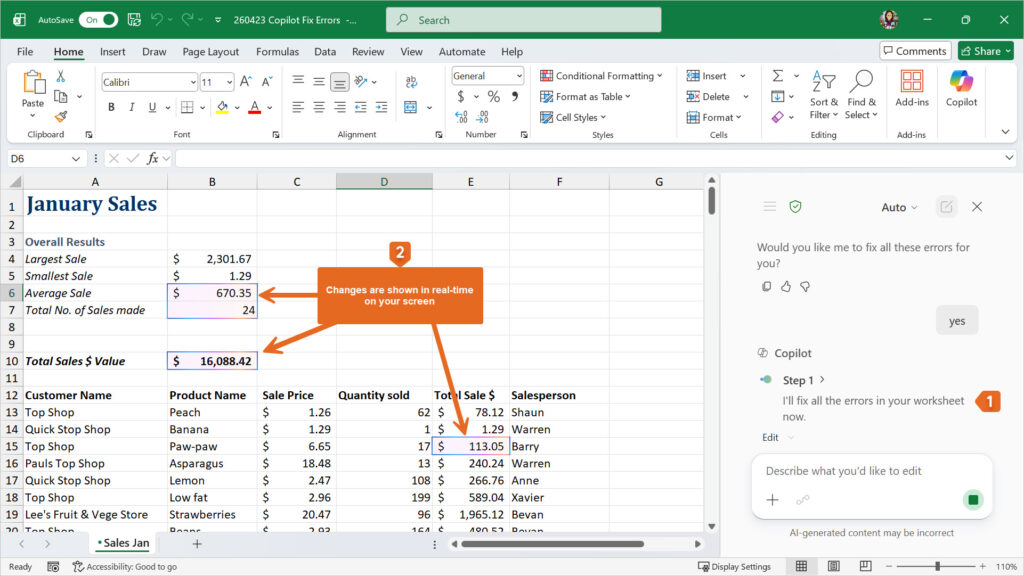
Copilot then asks:
“Would you like me to fix all these errors for you?”
1. In the Message box. Type “yes” if you are happy to proceed with all fixes. If you would like Copilot to ignore a fix, tell it which fixes to ignore.
2. Click Send.

When you confirm:
- Copilot implements each fix.
- You can see changes happening in real time.
3. A final summary confirms that the worksheet is now consistent.
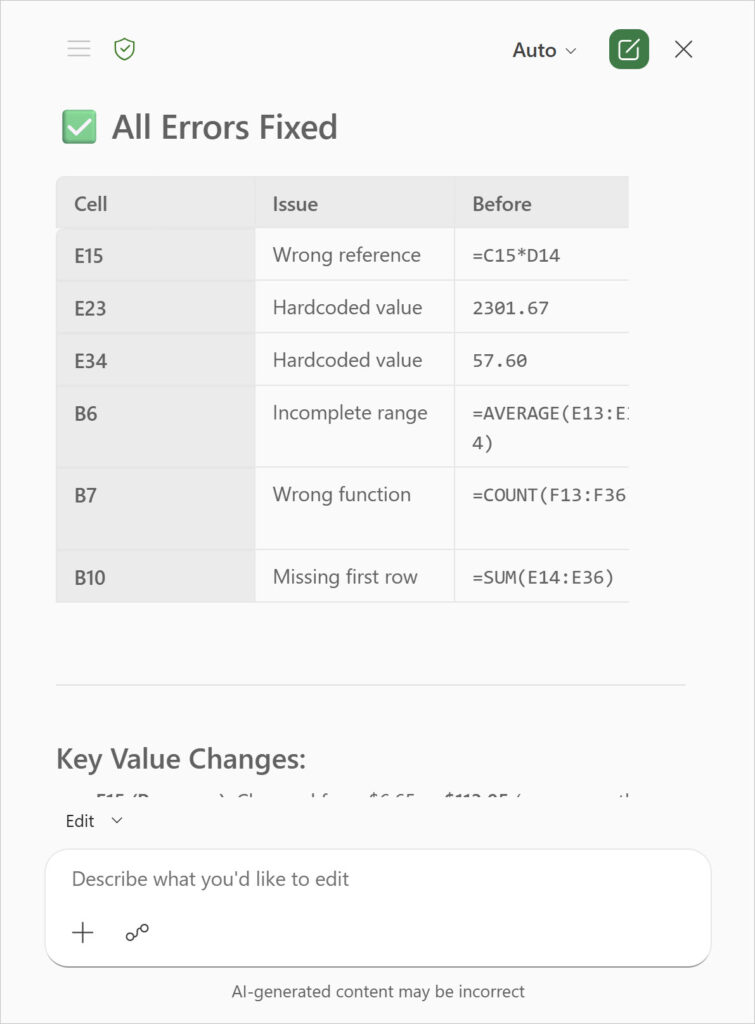
Why This Builds Confidence
Instead of second‑guessing yourself, you get:
- Visible corrections
- Clear explanations
- Confidence that the worksheet will update correctly going forward
Troubleshooting & Tips
Problem: I can’t see the Copilot button
Fix: Your Microsoft 365 licence does not include Copilot for Excel.
Problem: Copilot only offers the Chat option. I can’t see an “Allow editing” option.
Fix: Your licence does not allow editing.
Problem: Copilot lists issues I don’t understand
Fix: Read each explanation slowly. Copilot explains why, not just what. If you don’t understand, ask Copilot to explain again in a simpler way.
Problem: I’m worried Copilot will break my file
Fix: Use the Chat option first for reassurance, then switch to Allow editing when you feel confident. You might want to save a copy of your file first, just to be safe.
Problem: Copilot didn’t find any errors
Fix: That’s good news. It means your formulas are consistent and properly set up.
FAQs
Q: Can Copilot replace Excel knowledge?
A: No. It supports you, but it’s important you remain in control of final decisions. Copilot is a helper. It doesn’t replace understanding your data.
Q: Does Copilot create formulas automatically?
A: Yes, but you should always review and understand what it produces.
Q: Will Copilot damage my spreadsheet?
A: No changes occur unless you approve them in Allow editing mode. You can undo most changes. If you are concerned, save a copy of your file before using “Allow editing”.
Q: Can I use Copilot without editing permissions?
A: Yes. Chat mode works purely as a review tool.
Q: Does Copilot catch hard‑coded numbers?
A: Hard-coded numbers are common when someone types a number over your formula. Thankfully, Copilot highlights places where formulas should be. If you are using Allow editing, it will replace the hard-coded values with formulas.
Q: Is Copilot available on all Excel versions?
A: No. Copilot in Excel requires a Microsoft 365 licence with Copilot editing enabled. To check if your licence includes these features, look for the Copilot button and the option to enable Allow editing on the Home tab.
Conclusion
Excel errors are a common occurance when you work in Excel.
Using Copilot in Excel as a checking assistant takes away a lot of stress, especially when accuracy is important.
Whether you use Chat for reassurance or Allow editing to work faster, Copilot gives you confidence before you share your spreadsheet.
Watch The Excel Video Tutorial
[Watch on YouTube] / [Subscribe to our YouTube Channel]
Join my courses
If Copilot has piqued your interest but you’d like to better understand Excel, I’d love to help.
Everything I teach is designed for everyday business users who want calm, clear explanations without jargon.
✅ Join my self‑paced Excel courses, or
✅ Book live online training with me via Microsoft Teams
Excel Practice File Download
Want to Learn Excel Properly?
Join the Excel at Work Learning Hub
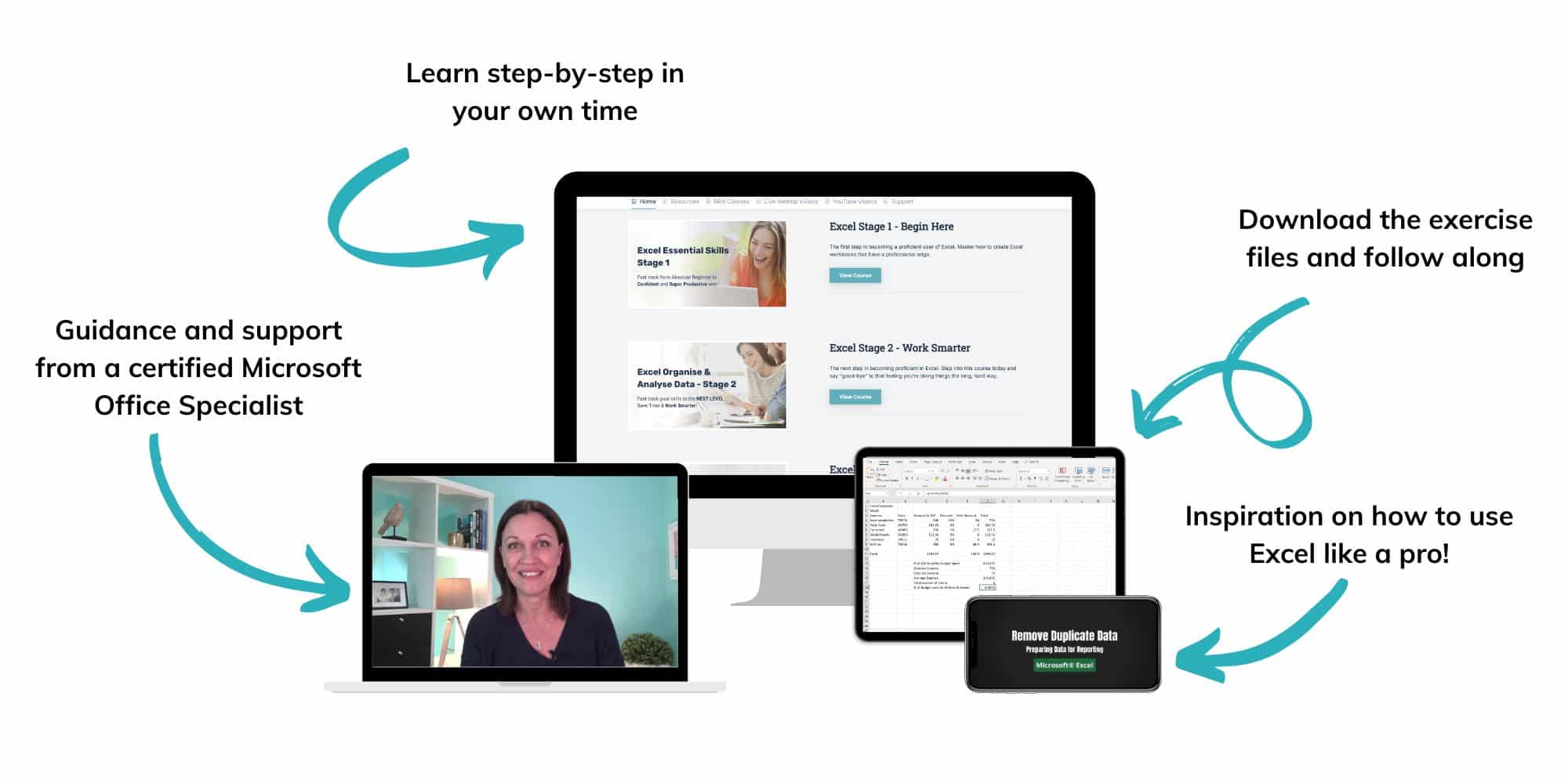
The Excel at Work Learning Hub is an online self-paced Excel training membership designed for people who use Excel at work—in offices, on sites, in schools, in small businesses, and everywhere in between.
Go from Beginner to Confident – Guaranteed!
Only $59NZ /month
Cancel anytime • No pressure • 14-day 100% Money Back Guarantee

Certified Microsoft Office Specialist
Was this blog helpful? I’m here to empower your journey with Excel, aiming to make your daily tasks more efficient and boost your potential.
Share your thoughts in the Comments below – your insights not only enrich others, they also help me tailor future content to your needs.
And if you’re looking to take a step further, join our exclusive ‘Insider Group‘. As a member, you’ll receive Weekly Super-Tips, and early access to in-depth tutorials. Sign up Today!
Happy Excel-ling!!