If you’ve ever looked at a blank cell and wondered which function to use, what range to select, or where the commas go, this guide is for you. You don’t need to memorise formulas, even if you’re just starting out. Copilot Formula Completion suggests and completes formulas as soon as you type =, so you can write accurate formulas more quickly and confidently.
When you start typing a function, such as SUM or XLOOKUP, after the = sign, Excel suggests a full formula with the function and cell references. This feature helps you avoid mistakes and saves time on common tasks like totals, lookups, and counts.
I’ve been teaching Microsoft Office for 20+ years, and I’m constantly helping busy professionals who use Excel every day but don’t make it their core job. Features like Copilot Formula Completion suggestions can make a huge difference—less trial‑and‑error, fewer headaches, and more time spent on insights.
Quick note: Copilot Formula Completion is designed to speed up formula writing in Excel for Windows and is rolling out to Microsoft 365 users. This feature might not be available to everyone right away—it depends on which version of Excel you have and how your updates are configured.
Excel Practice Files
What is Copilot Formula Completion in Excel?
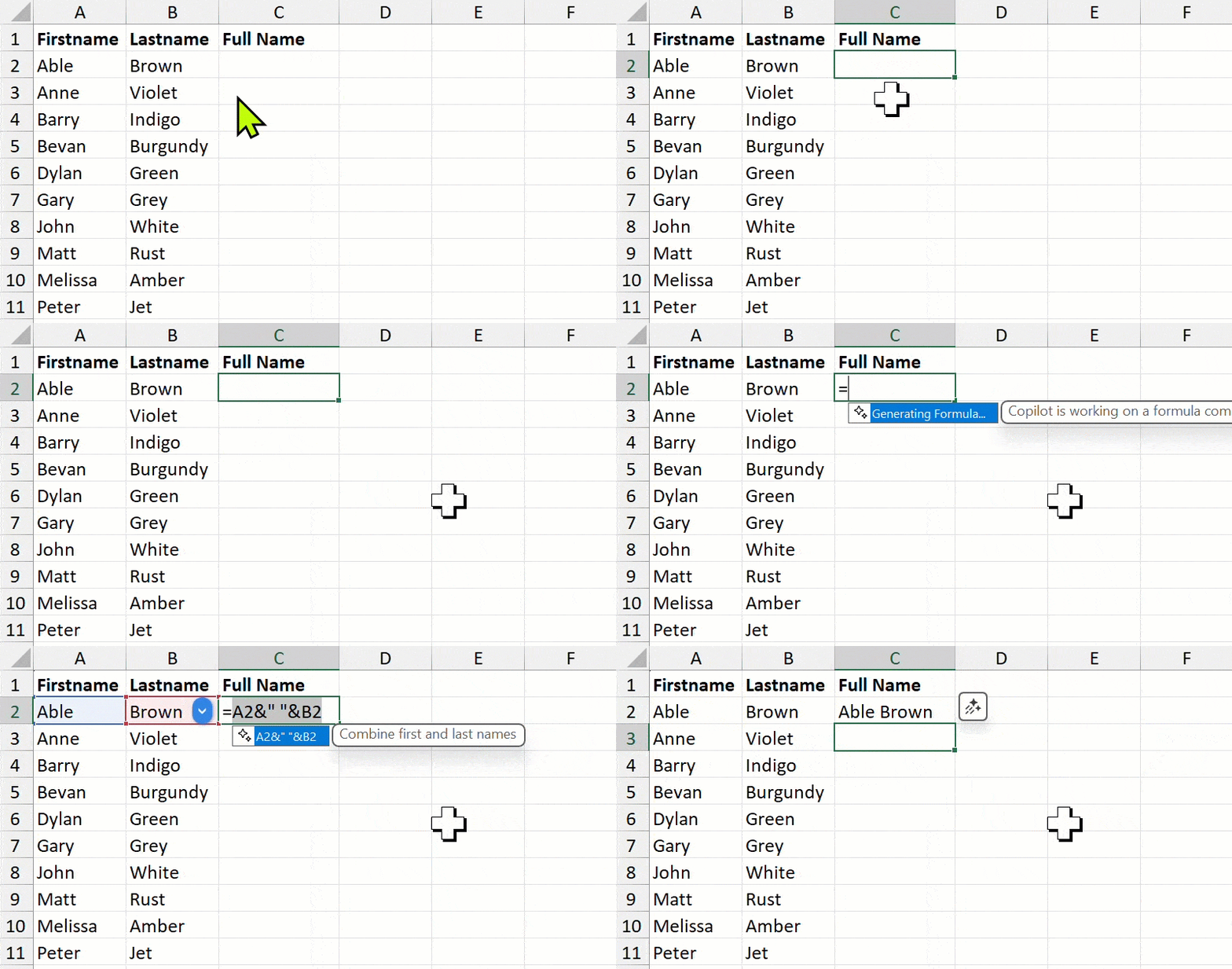
Copilot Formula Completion is an AI-powered tool in Excel that suggests and completes formulas as soon as you start typing =. It looks at your sheet’s context, such as headers, nearby cells, tables, and existing formulas, and then shows a suggestion with a short plain-English description and a preview of the result. This helps you quickly insert the right
Known limitation: Microsoft says suggestions do not include formulas that reference other worksheets in the same file. This may change in the future (see References).
How do I get access or turn it on?
This feature is only available to people with a Copilot add-on licence. Here’s how to check if you have one.
Check using the Copilot Chat pane
- Open Excel and click the Copilot button on the ribbon to open the Copilot Chat pane.
- Look at the icons at the top of the pane. If you see a Work icon next to the Web icon, you have a Copilot licence linked to your work account.

Tip: If you don’t see the Work icon, you’ll need to speak with your IT team or Microsoft 365 administrator about adding the Copilot license to your account.
How do I use Copilot Formula Completion?
When you’re ready to create a formula:
- Click the cell where you want the result.
- Type = and pause for a moment. Copilot will propose a formula based on your table headers and nearby data. Tiny sparkles will be displayed in front of the suggested formula.
- If nothing appears, start typing the formula one character at a time (e.g., s → su → sum) to help Excel recognise the function.
- Read the tool tip description and check the suggested formula.
- Press Tab or Enter to accept the suggestion (or Esc to cancel).
Tip: Formula completion works best when your data is clearly labelled and set up as a Table (use Ctrl + T). But if your column headings and row labels are clear, you don’t have to format your data as a Table.
Flash Fill vs Copilot Formula Completion
- Flash Fill is fantastic for quick data cleaning (split names, change case, fix codes). It copies patterns, but the results are static once created. If you’re new to Flash Fill, check out my blog post on “How to change case without a formula” to see how amazing it is.
- Copilot Formula Completion writes dynamic formulas that recalculate when your data changes. Perfect for totals, lookups, and counts.
Rule of thumb: Use Flash Fill for quick, one-time pattern fixes. Use Copilot Formula Completion when you need a formula that updates as your data changes.
Practical examples (business scenarios)
Below are step-by-step examples using the exact formulas found in each sheet of your file. Each example shows how to use Copilot Formula Completion suggestions to help you write the formula, using regular cell references as per your worksheets.
Download the practice file right now and follow along with me.
Example 1: Combine First and Last Name (Names sheet)
Scenario: You want to combine “Firstname” and “Lastname” into “Full Name”.
Formula in worksheet:
- C2: =A2&” “&B2 or =CONCAT(A2,” “,B2)
How to use Copilot Formula Suggestions:
- Go to the Names sheet.
- Click in cell C2.
- Type “=” and pause. Copilot will scan cells A2 and B2. Tiny sparkles will appear in front of Copilot’s formula suggestion, along with a tooltip indicating the function of the formula.

- If no suggestion appears, or you would prefer another formula, start typing the correct formula. For example, to insert the CONTCAT function, begin typing =co and Copilot should suggest the CONCAT formula.

- Once you are happy with the formula, press TAB or ENTER to accept it.

Summary: CONCAT is a useful function for combining names, but inserting extra spaces between the names can be time-consuming. Copilot Formula Suggestions help by filling in the right arguments, saving you time and reducing mistakes.
Example 2: Extract City and Region (Branches sheet)
Scenario: You want to split the “Branch” column into “City” and “Region”.
Formulas in worksheet:
- B2: =TEXTBEFORE(A2,”, “)
- C2: =TEXTAFTER(A2,”, “)
How to use Copilot Formula Suggestions:
- Go to the Branches sheet.
- Click in cell B2.
- Type = and pause. Copilot will scan A2.
- If no suggestion appears, start typing =TEXTBEFORE, and Copilot should suggest the formula.

- For C2, start typing = and Copilot should suggest the formula. In the example below, you will see that Copilot has suggested using the TEXTAFTER function, nested within the TRIM formula, because it has detected an extra space that needs to be removed.

- Review and accept.
Summary: TEXTBEFORE and TEXTAFTER are newer functions that make it easy to split text, but their names and arguments can be confusing. Copilot Formula Suggestions help you choose the right function and delimiter without having to guess.
Quick note: If your data uses a different separator, such as a comma instead of a comma and space, change the formula or your data to get the best results.
Example 3: Calculate Total Including Tax (Total inc Tax sheet)
Scenario: You want to calculate the total, including 15% tax, for all invoices.
Formula in worksheet:
- B12: =SUM(B2:B11)*1.15
How to use Copilot Formula Suggestions:
- Go to the Total inc Tax sheet.
- Click in cell B12.
- Type = and pause. Copilot will scan B2:B11.
- If no suggestion appears, start typing =SUM, and Copilot should suggest the formula.
- Review and accept.

Summary: Copilot Formula Suggestions make it simple to build formulas that combine functions, such as SUM, with calculations like multiplying by 1.15. This means you don’t have to remember the order of operations or which ranges to use.
Example 4: Calculate Gross Profit Margin % (Gross Profit sheet)
Scenario: You want to calculate the gross profit percentage for each product.
Formula in worksheet:
- D2: =(C2-B2)/C2
How to use Copilot Formula Suggestions:
- Go to the Gross Profit sheet.
- Click in cell D2. Note that the column heading in D1 will help Copilot to suggest the correct formula.
- Type = and pause. Copilot will scan B2 and C2.
- If no suggestion appears, start typing =(C2-B2)/C2 and Copilot should suggest the formula.
- Review and accept.

Example 5: Sum Total Sales by Region (Region Sales sheet)
Scenario: You want to sum the total sales for each region.
Formula in worksheet:
- E2: =SUMIF(A2:A11,D2,B2:B11)
How to use Copilot Formula Suggestions:
- Go to the Region Sales sheet.
- Click in cell E2. Note that the column headings and the row label in cell D2 are named to help Copilot suggest the correct formula.
- Type = and pause. Copilot will scan the data.
- If no suggestion appears, start typing =SUMIF, and Copilot should suggest the formula.
- Review and accept.

Summary: SUMIF is a powerful function, but it needs three arguments in the correct order. Copilot Formula Suggestions help you avoid errors and quickly create a summary by region.
Example 6: Lookup Product Price (Lookup Product sheet)
Scenario: You want to look up the unit price for a product code.
Formula in worksheet:
- E2: =XLOOKUP(D2,A2:A6,B2:B6,”Not Found”)How to use Copilot Formula Suggestions:
How to use Copilot Formula Suggestions:
- Go to the Lookup Product sheet.
- Click in cell E2. Note that the column headings are named to help Copilot suggest the correct formula.
- Type = and pause. Copilot will scan the data.
- If no suggestion appears, start typing =XLOOKUP, and Copilot should suggest the formula.
- Review and accept.

Summary: XLOOKUP is simpler than VLOOKUP, but it still needs several range references and extra arguments. Copilot Formula Suggestions save you time because you don’t have to remember the order of arguments or enter the ranges yourself.
Example 7: Count Orders Due This Week (Due Dates sheet)
Scenario: You want to count how many orders are due this week (next 7 days).
Formula in worksheet:
- G1: =COUNTIFS(B2:B11,”>=”&TODAY(),B2:B11,”<=”&TODAY()+7)
How to use Copilot Formula Suggestions:
- Go to the Due Dates sheet.
- Click in cell G1.
- Type = and pause. Copilot will scan B2:B11.
- If no suggestion appears, start typing =COUNTIFS, and Copilot should suggest the formula.
- Review and accept.

Summary: COUNTIFS is useful for counting with multiple conditions, but the syntax can be tricky. Copilot Formula Suggestions help you set up the criteria and ranges correctly, so you can focus on your analysis.
Relates to: functions and features you’ll use alongside Copilot
- Flash Fill for quick patterns, especially when cleaning text.
- COUNTIF / COUNTIFS for conditional counts.
- TEXTBEFORE / TEXTAFTER for splitting strings.
- CONCAT to join text.
- SUM for totals.
Troubleshooting and Tips
Q: I typed = and nothing happened. What should I do?
- Check you have a Copilot add-on license (see above).
- Save to OneDrive/SharePoint and turn AutoSaveOn.
- Restart Excel and then try again.
- Once you type =, wait a second. Copilot may still be loading. A progress indicator can appear on the bottom border of the cell.
- Type one character at a time (e.g., s → su → sum) to help Excel recognise the function.
- Use descriptive table/column names and row labels; clear headers and labels give better suggestions.
- Check your references before pressing Enter. Copilot is helpful, but you are the final check.
Q: Can I turn formula completion off?
- Yes. Go to File > Options > Copilot and select Hide formula completion suggestions for a timeframe.
Q: Why didn’t Copilot suggest a formula that references another sheet?
- That’s a known limitation of formula completion right now; Microsoft may add this in the future.
FAQs
Q: Does Copilot Formula Completion work offline?
A: You’ll get the best results when you’re signed in to Microsoft 365, and your file is saved with AutoSave on. Check with your IT team for any cloud/storage policies.
Q: Is this the same as Flash Fill?
A: No. Flash Fill copies patterns and is static. Copilot Formula Completion writes dynamic formulas that recalculate as your data changes.
Q: What if the suggestion is wrong?
A: Press Esc to dismiss and keep typing. Try starting with the function name (e.g., SUMIFS or XLOOKUP) to guide the suggestion.
Q: Do I need special licensing?
A: You need Microsoft 365 with the latest Excel updates. Some capabilities may roll out gradually across Insider/Production channels.
Q: Will Copilot create advanced models for me?
A: No. It’s built to speed up formula writing, not replace sound spreadsheet design. Use it to save time, then check the logic.
Q: Can I use this on a shared workbook?
A: Yes. Just make sure the file is saved to OneDrive or SharePoint with AutoSave turned on so your changes are saved.
Q: Does this work for formulas between worksheets and files?
A: At the time of writing this blog, this functionality wasn’t available.
References
- Microsoft 365 Insider: Faster formula writing with formula completion in Excel for Windows (how it works, tips, opt‑out, limitations).
- Microsoft Support: How to find and enable the missing Copilot button in Microsoft 365 apps (licensing, privacy settings, update channel, and refresh license).
Watch The Excel Video Tutorial
[Watch on YouTube] / [Subscribe to our YouTube Channel]
Excel Practice File Download
Conclusion
If formulas have ever felt like a waste of time or knocked your confidence, Copilot Formula Completion can help you get them right the first time. You’ll save time on every formula, make fewer mistakes, and have more mental space for analysis instead of worrying about syntax.
Since Copilot suggests standard Excel formulas, your work stays clear and easy for you to maintain.
Want to feel more confident with formulas?
Join my super-popular self-paced Excel course, ‘Excel 1-2-3, Go from Beginner to Pro,’ and learn how to use Copilot to save time and work smarter every day.
Or, book a live online coaching session with me to improve your skills and address any personal challenges.
If you’re not yet ready to take a course, I’m here to support you! Check out my YouTube tutorials and blog articles—they’re designed to help you build your skills and confidence. Let’s embark on your learning journey together!
YouTube: https://www.youtube.com/c/excelatwork
Search my Blog: https://www.excelatwork.co.nz/blog/
Want to Learn Excel Properly?
Join the Excel at Work Learning Hub
The Excel at Work Learning Hub is an online self-paced Excel training membership designed for people who use Excel at work—in offices, on sites, in schools, in small businesses, and everywhere in between.
Go from Beginner to Confident – Guaranteed!
Only $59NZ /month
Cancel anytime • No pressure • 14-day 100% Money Back Guarantee

Certified Microsoft Office Specialist
Was this blog helpful? I’m here to empower your journey with Excel, aiming to make your daily tasks more efficient and boost your potential.
Share your thoughts in the Comments below – your insights not only enrich others, they also help me tailor future content to your needs.
And if you’re looking to take a step further, join our exclusive ‘Insider Group‘. As a member, you’ll receive Weekly Super-Tips, and early access to in-depth tutorials. Sign up Today!
Happy Excel-ling!!