Ever wondered how to make Excel do the thinking for you? The IF function is your go-to tool for making decisions in your spreadsheets—such as checking if sales targets are met, flagging overdue invoices, or highlighting top performers.
In this guide, you’ll become confident using the IF function, and you’ll discover how to supercharge it with powerful tools like AND, OR, and IFS.
You’ll also learn how to ask IF questions using colour (Conditional Formatting), and how to create IF functions simply by chatting with Copilot—no formulas needed!
Excel Practice Files
1. What is the IF function in Excel?
The IF function lets you ask Excel a question, and then do something based on the answer. For example, you can check if a sales rep met their monthly target.
Syntax:
=IF(logical_test, value_if_true, value_if_false)
Example:
Suppose you have a sales total in cell A2 and the target is $5,000. Using an IF function, you can quickly determine if the target has been reached.
=IF(A2>=5000, “Target Met”, “Below Target”)
- If the sales are $5,000 or more, Excel shows “Target Met”.
- If the amount is less than $5,000, Excel displays “Below Target”.

Tip: to insert text into the cell, make sure to enclose it in double quotation marks, e.g. “Target Met”.
2. How do I write a basic IF formula in Excel?
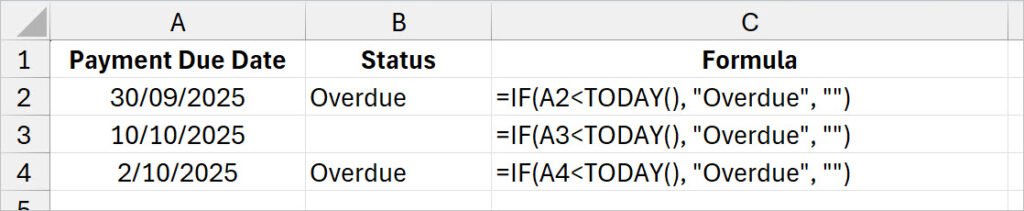
Let’s say you want to check if an invoice is overdue. Instead of doing this manually, you can use an IF function to automate the check of the payment status.
Step-by-step:
- Click the cell where you want the result.
- Type =IF( then your test: A2<TODAY()
- Type a comma, then what happens if it’s true: “Overdue”
- Type another comma, then what happens if it’s false: “”
- Close the bracket and press Enter.
Formula:
=IF(A2<TODAY(), “Overdue”, “”)
- The TODAY function uses today’s date based on your computer’s system clock. Therefore, if A2 is a date before today, Excel shows “Overdue”.
- If A2 is today or later, Excel leaves the cell empty “” – empty quotes return an empty cell.
3. IF Function For Multiple Conditions with AND, OR Functions
IF with AND Example – Calculate Bonus
Use IF with the AND function when you want to check if all conditions are true.
Scenario:
A staff member gets a bonus only if they made at least 200k sales and their customer satisfaction score is 90% or higher.
Formula:
=IF(AND(A2>=20, B2>=0.9), “Bonus”, “No Bonus”)
- If both conditions are met, Excel shows “Bonus”.
- If either is not met, Excel shows “No Bonus”.

IF with OR Example – Supplier Flag
Use IF with the OR function when you want to check if any of the conditions are true.
Scenario:
A supplier is flagged if their delivery is late or the goods are damaged.
Formula:
=IF(OR(B2= “Late”, C2= “Damaged”), “Flag Supplier”, “OK”)
- If either condition is true, Excel shows “Flag Supplier”.
- If both are false, Excel shows “OK”.

4. IFS Function in Excel – Project Status Example
IFS is particularly useful when you have more than two possible outcomes.
Scenario:
You want to rate a project’s status based on its completion percentage in cell A2:
- 100%: “Complete”
- 75% or more: “On Track”
- 50% or more: “Behind”
- Less than 50%: “At Risk”
Formula:
=IFS(A2=100%, “Complete”, A2>=75%, “On Track”, A2>=50%, “Behind”, TRUE, “At Risk”)
- If A2 is 100% (1), Excel shows “Complete”.
- If A2 is 80% (0.8), Excel shows “On Track”.
- If A2 is 60% (0.6), Excel shows “Behind”.
- If A2 is 30% (0.3), Excel shows “At Risk”.

5. Conditional Formatting – Highlight Expenses Example
Conditional Formatting lets you change cell colours based on rules—just like IF, but with colour!
Scenario:
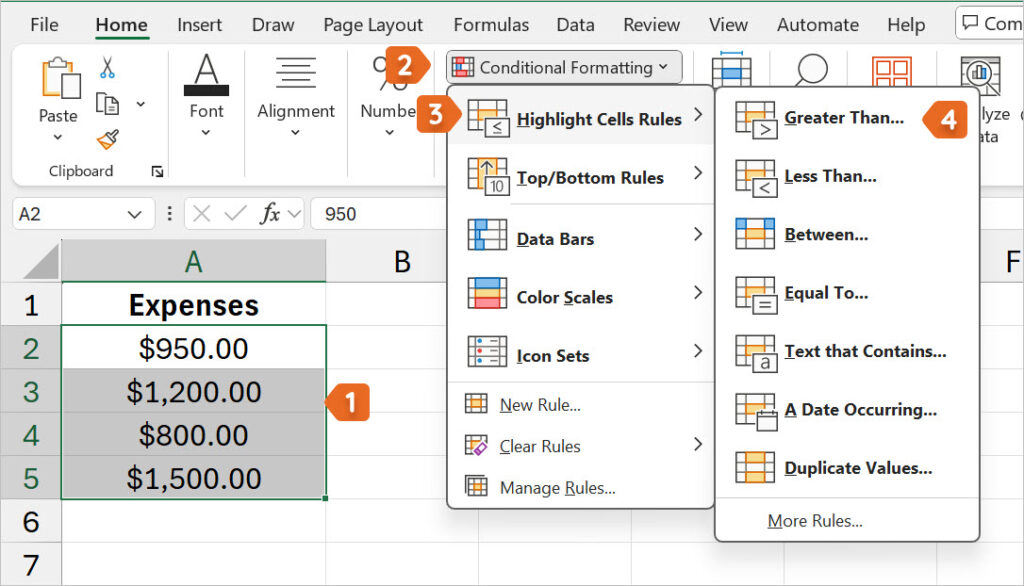
You want to highlight expenses in red if they are over $1,000.
Step-by-step:
- Select the cells with expenses (e.g., A2:A5).
- Go to the Home tab and click Conditional Formatting.
- Click Highlight Cells Rules.
- Choose Greater Than.
- In the Format cells that are GREATER THAN box,enter 1000.
- Click OK.

Result: Cells with expenses over $1,000 will turn red.
6. Copilot – IF Formula in Excel
Using plain English, you can ask Copilot in Excel to help you write IF formulas.
Note: Copilot in the desktop version of Excel is currently a paid subscription. Try using the online version of Excel for Microsoft 365 to access free Copilot support.
Step-by-step:
- Click the Copilot icon on the Home tab.
- In the Copilot pane, type your request. Give Copilot clear instructions on what you are trying to do.

- Click the Send button.
- Copilot will explain the best solution for your request and include step-by-step instructions on how to insert the formula, e.g., =IF(A2>5000, “Flag”, “”), into your worksheet and how to copy it into adjacent cells.
- Additionally, Copilot will propose other ways it can assist you in creating a solution for your request. Clicking on these suggestions is a great way to explore even more options to interrogate your data.

Other prompt ideas:
- “Create an IF formula with AND that returns ‘Bonus’ when Sales are over 200 AND Satisfaction is 90% or higher.”
- “Return ‘Urgent’ when Delivery is ‘Late’ or Quality is ‘Damaged’.”
7. IF Function not working?
Here are some common IF Function mistakes and quick fixes.
- Missing quotes around text: Use “Late”, not Late.
- Mismatched brackets: Ensure you open and close all brackets correctly.
- Unexpected 0 or blank: Check you’ve set both true and false values.
- Too many nested IF functions: Use IFS for lots of conditions.
- Comparing text with spaces: Use the TRIM function to clean up cells.
8. FAQs
Q. What’s the difference between IF and IFS?
IF is for one test. IFS is for many tests, and it’s easier to read.
Q. Can I use IF with text values?
Yes! Example: =IF(A2= “Paid”, “Cleared”, “Outstanding”)
Q. How many conditions can I include?
AND and OR can handle lots of conditions, but keep it simple. IFS can handle up to 127 pairs.
Q. Does Copilot work in every version of Excel?
You need Microsoft 365 and the Copilot add-on to use Copilot in the desktop version of Excel. However, if you use the free online version of the Microsoft 365 applications, you can access Copilot in Excel there.
Excel Practice File Download
9. Conclusion & next steps
You’ve now learned how to use IF, AND, OR, IFS, Conditional Formatting, and Copilot in Excel for business tasks. Start with a basic IF, add AND/OR for more checks, use IFS for lots of options, and Conditional Formatting for colour. Try Copilot to save time, get explanations and tackle more technical requests.
Ready to build confidence with Excel? Check out my Excel Stage 1–2–3 Bundle.
Want to Learn Excel Properly?
Join the Excel at Work Learning Hub
The Excel at Work Learning Hub is an online self-paced Excel training membership designed for people who use Excel at work—in offices, on sites, in schools, in small businesses, and everywhere in between.
Go from Beginner to Confident – Guaranteed!
Only $59NZ /month
Cancel anytime • No pressure • 14-day 100% Money Back Guarantee

Certified Microsoft Office Specialist
Was this blog helpful? I’m here to empower your journey with Excel, aiming to make your daily tasks more efficient and boost your potential.
Share your thoughts in the Comments below – your insights not only enrich others, they also help me tailor future content to your needs.
And if you’re looking to take a step further, join our exclusive ‘Insider Group‘. As a member, you’ll receive Weekly Super-Tips, and early access to in-depth tutorials. Sign up Today!
Happy Excel-ling!!