If you’ve ever felt overwhelmed trying to wrangle a long, nested IF formula, the Excel IFS Function is going to be your new best friend. When you need to check multiple conditions—such as sales tiers, grade bands, or service levels—IFS makes your logic clear, readable, and easier to maintain.
In a business context, this saves a significant amount of time and reduces errors. For example, if you’re calculating commission rates across different revenue thresholds, IFS allows you to define each tier cleanly and set a default outcome for any amount that doesn’t fit. It’s perfect for operational reporting, dashboards, and any scenario where clarity and speed matter.
For example, imagine you’re assigning priority to customer cases. You can test overdue days and account value with IFS, return ‘High’, ‘Medium’, or ‘Normal’, and add a catch‑all result like ‘Check details’ for anything unusual. That’s smarter, faster, and more maintainable than trying to debug a messy chain of nested IFs. The Excel IFS Function helps you work smarter and build confidence in your formulas.
Excel Practice Files
What Does IFS Do?
- Evaluates multiple conditions in order and returns the first matching result.
- If no condition is TRUE, IFS returns #N/A (unless you add a final TRUE as a default “else”).
- Replaces complex nested IF formulas with a simpler, more readable structure.
- Works with numbers, text, and logical tests; combine with AND/OR for more complex rules.
Syntax
IFS(logical_test1, value_if_true1, [logical_test2, value_if_true2], …)
- logical_test1, logical_test2, … — The conditions you want to check (e.g., C2>=60000, TRIM(B2)=”Urgent”). Excel evaluates them in order.
- value_if_true1, value_if_true2, … — The result to return when the corresponding test is TRUE (e.g., “High”, 0.08).
Tip: Add a final test of TRUE with a default result to avoid #N/A when no conditions match.
Example 1: Grade Bands with a Default “Else”
A common pain point is maintaining a long nested IF to turn scores into grade bands. It’s hard to read, hard to update, and easy to break. With IFS, you can list your thresholds in order, returning clear labels like “Excellent”, “Good”, and “Pass”. Add a final TRUE test for a default outcome like “Fail”, and you’ll never get unexpected #N/A. This makes auditing and changes (e.g., shifting the cut‑offs) much easier, especially for management reports or training dashboards.
Formula:
=IFS(B2=””, “Missing score”, B2>=85, “Excellent”, B2>=70, “Good”, B2>=50, “Pass”, TRUE, “Fail”)
Explanation: Checks for a missing score first, then evaluates descending thresholds. Returns the text “Missing score”, the first matching grade or “Fail” by default.
Business Scenario: Employee training results, safety compliance scores, or quality audits where performance bands group results.
Skill Level: Intermediate

Example 2: Commission Tiers for Monthly Sales
Commission structures often create headaches due to changing thresholds, unclear rules, and complex formulas. IFS keeps it clean. You define each tier once and set a sensible default. If goals or tiers change, you update one line—not a tangled nest. It’s easy to explain to a colleague, audit for your accountant, and reuse across multiple reports. You’ll minimise errors and speed up month‑end processing.
Formula (Rate in D2):
=IFS(B2>=100000, 0.12, B2>=60000, 0.08, B2>=30000, 0.05, TRUE, 0.03)
Formula (Commission in E2):
=B2*C2
Explanation: Applies the first matching rate based on monthly sales and then calculates the commission.
Business Scenario: Sales dashboards, payroll summaries, and incentive reporting with tiered payouts.
Skill Level: Beginner

Example 3: Case Priority Using AND Inside IFS
Sometimes, you need to consider two factors simultaneously. For example, prioritising cases based on days overdue and account value. With IFS, you can combine tests using the AND operator to capture both conditions in a single result. This avoids confusion and ensures the most critical cases get attention first.
Formula:
=IFS(AND(B2>=30, C2>=5000), “High Priority”, AND(B2>=15, C2>=2000), “Medium”, TRUE, “Normal”)
Explanation: Evaluates combined conditions: 30 or more days overdue and $5,000 or more value is “High Priority”; 15 days or more overdue and $2,000 or more is “Medium”; otherwise the priority is “Normal”.
Business Scenario: Customer success queues, collections workflows, or service desk triage.
Skill Level: Intermediate / Advanced

Example 4: Normalising Text Before IFS (TRIM/UPPER)
Messy text inputs (extra spaces, mixed case) can cause mismatches. A simple way to bulletproof your logic is to normalise the text first with TRIM and UPPER, then apply IFS. This is a common pain point when pulling data from forms or external systems.
Formula:
=IFS(UPPER(TRIM(B2))=”URGENT”, “Respond within 4 hours”, UPPER(TRIM(B2))=”STANDARD”, “Respond within 48 hours”, TRUE, “Check status”)
Explanation: Cleans the text (removes extra spaces, makes uppercase) so comparisons are reliable, then returns the correct service level—or a default.
Business Scenario: Service desks, intake forms, and customer request queues where status values are entered inconsistently.
Skill Level: Intermediate / Advanced

Troubleshooting IFS
When working with the Excel IFS function, you may occasionally encounter unexpected results or error messages. Understanding the most common issues and how to resolve them will help you use the IFS function with confidence and accuracy. Let’s look at some typical problems and their solutions.
#N/A because no condition is TRUE
If none of your tests evaluate to TRUE, IFS returns #N/A.
Example:
=IFS(C2>=100000, “Tier 1”, C2>=60000, “Tier 2”)
If C2 contains the value 40000, Excel cannot satisfy either of the conditions above and, as a result, returns the #N/A error.
Fix (Steps):
- Add a final TRUE test as a default outcome, e.g., …, TRUE, “Tier 3”.
- Or include a catch‑all condition (e.g., C2<60000).
Wrong results due to condition order
IFS stops at the first TRUE. If broader conditions precede specific ones, the results can be incorrect.
Example:
=IFS(C2>=50, “Pass”, C2>=85, “Excellent”)
This will never return Excellent because a mark of 90 will be found to be TRUE on the first test, and Excel will return a “Pass” and not “Excellent”.
Fix (Steps):
- Order tests from left to right with the most specific to least specific (higher thresholds first).
- Review your ranges for overlaps and adjust the sequence.
Numbers stored as text
Comparisons can fail when numbers are stored as text (e.g., “60000”).
Example:
=IFS(C2>=60000, 0.08, TRUE, 0.03)
If the value in C2 is held as text, e.g., “75000”, it may not match.
Fix (Steps):
- Convert with VALUE(C2) or multiply by 1 (e.g., C2*1).
- Use Data > Text to Columns (no delimiter) to convert stored text numbers.
- Clean imports with TRIM and CLEAN if spaces or non‑printing characters exist.
Excel IFS Function FAQs
Q. How is IFS different from IF?
Solution: IF checks one condition (or uses nested IF for many). IFS checks multiple conditions in order and returns the first match, making complex logic more straightforward to read.
Q. How do I set a default “else” in IFS?
Solution: Add a final test of TRUE with your default result, e.g., …, TRUE, “Other”. This prevents #N/A when no match is found.
Q. Can I use AND/OR inside IFS?
Solution: Yes. Wrap each logical_test in AND(…) or OR(…) to combine rules, e.g., IFS(AND(D2>=30, E2>=5000),”High”, …).
Q. What if my Excel version doesn’t support IFS?
Solution: IFS is available in Microsoft 365, Excel 2019, and later. On older versions, use nested IF or consider SWITCH/CHOOSE for specific patterns.
Excel Practice File Download
Related Functions
- IF — Single condition checks
- AND — Combine multiple conditions (all must be TRUE)
- OR — Combine multiple conditions (any can be TRUE)
- NOT — Negate a condition
- SWITCH — Map single expressions to outcomes (excellent for exact matches)
- CHOOSE — Select by index (use with MATCH for category mapping)
Conclusion: Excel IFS Function
To sum it up, the Excel IFS function is a fantastic tool for simplifying complex logic and keeping your formulas neat—no more headaches from endless nested IFs!
Whether you’re sorting grades, handling commissions, or tidying up your reports, IFS makes your work easier and more efficient. Give it a go in your next spreadsheet—you’ll be surprised how much time and effort it can save you!
Want to Learn Excel Properly?
Join the Excel at Work Learning Hub
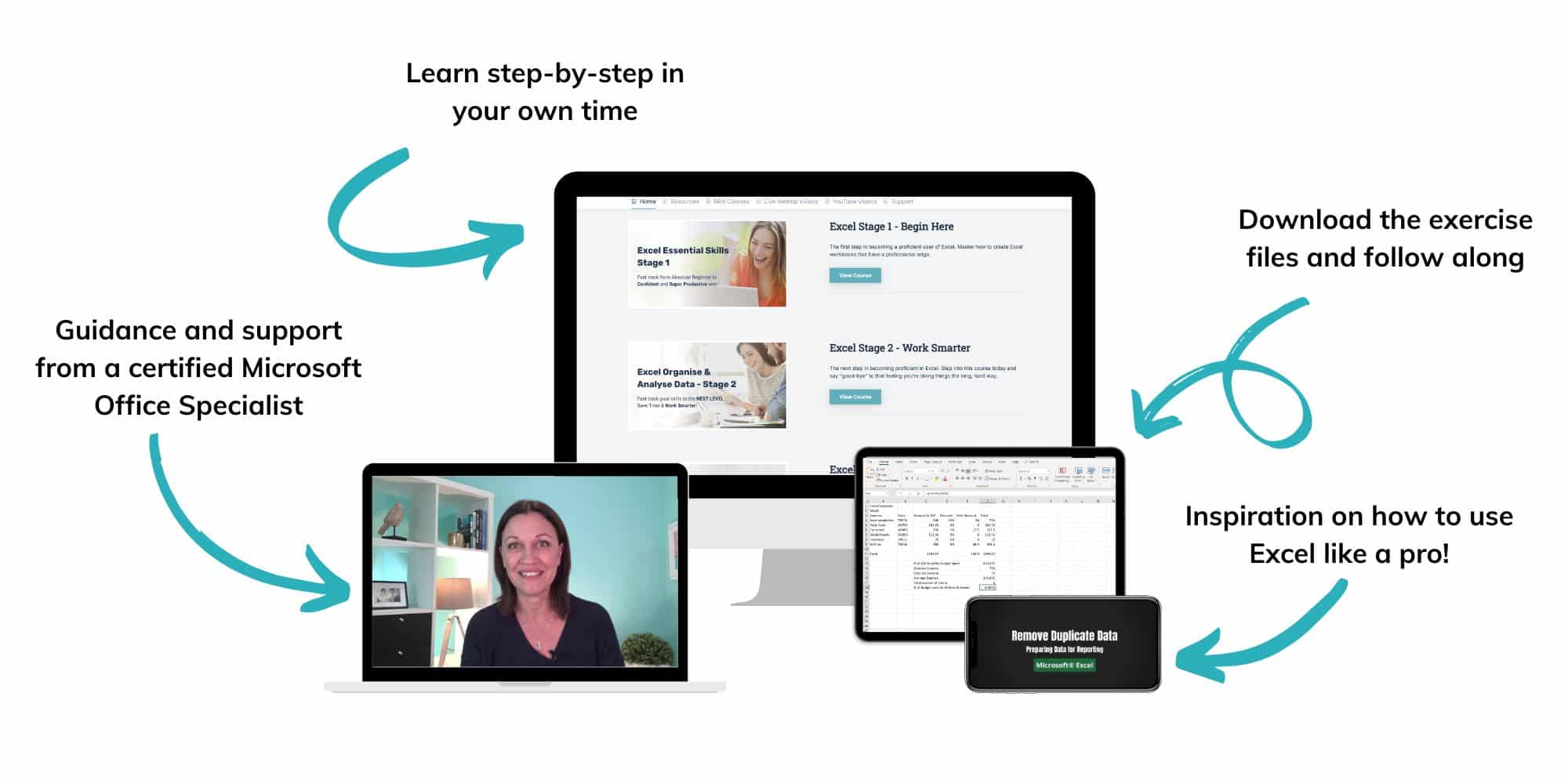
The Excel at Work Learning Hub is an online self-paced Excel training membership designed for people who use Excel at work—in offices, on sites, in schools, in small businesses, and everywhere in between.
Go from Beginner to Confident – Guaranteed!
Only $59NZ /month
Cancel anytime • No pressure • 14-day 100% Money Back Guarantee

Certified Microsoft Office Specialist
Was this blog helpful? I’m here to empower your journey with Excel, aiming to make your daily tasks more efficient and boost your potential.
Share your thoughts in the Comments below – your insights not only enrich others, they also help me tailor future content to your needs.
And if you’re looking to take a step further, join our exclusive ‘Insider Group‘. As a member, you’ll receive Weekly Super-Tips, and early access to in-depth tutorials. Sign up Today!
Happy Excel-ling!!