
Online Excel Courses NZ – Work Smarter with Confidence
Most people using Excel every day have never actually been taught it. Let’s fix that.
Watch lessons whenever it suits you — pause, rewind, and revisit anytime.
Why people choose the Excel at Work Learning Hub
The Excel at Work Learning Hub is an online Excel training membership site run by Sharyn Baines — a Certified Microsoft® Office Specialist based in New Zealand. Membership gives you unlimited access to structured Excel courses from Beginner through to Advanced, short courses, live meetups with Sharyn, and an AI chatbot for on-the-job help — all in one place. From $59/month or $590/year, with no lock-in contracts and a 14-day money-back guarantee. All you need is Excel, a PC and internet access.
Most Excel courses leave you on your own the moment you finish. You’re back at your desk, facing a spreadsheet you didn’t build, Googling the same things you thought you’d learned. The Hub gives you the structured path from Beginner to Advanced — plus the support to handle whatever Excel throws at you. And as AI and Copilot keep changing how people work, Sharyn updates the Hub, so you’re never the one playing catch-up.
Join for $59/month, or $590/year. You get ongoing access to everything — lessons, answers, and support. Try it risk-free with a 14-day 100% money-back guarantee.
Cancel anytime. No messy contracts
Does any of this sound familiar?
- You use Excel at work — or you’re about to — and you want to actually know what you’re doing, not just get by.
- You’ve learned bits and pieces over time and worry that there are gaps in your understanding.
- You’d love to confidently say you’re a Beginner, Intermediate, or Advanced user — and mean it.
- You spend too long on reports every week and suspect there’s a faster way — you just don’t know what you don’t know.
- You’ve heard about Copilot, but you’re not confident enough in Excel yet to know whether to trust what it produces.
- You’ve just started a new role, been promoted, or are returning to work — and you need your Excel skills to catch up fast.
If you’re nodding along, you’re completely normal. Most of the Learning Hub members were in exactly the same place before they joined.
How it works
Getting started takes less than five minutes.
Join the Hub
Choose monthly or annual membership and create your account. You get instant access straight away — no waiting, no setup calls.
Take the placement quiz
Take a short quiz to find your current level and spot any gaps. Start exactly where you need to, or begin fresh from the very start.
Start your first lesson
Open your first lesson whenever you’re ready. Watch at your own pace, pause, rewind, and come back any time — the Hub is always there.
“Thank you so much for the wonderful online Excel course. Your teaching approach was wonderful, encouraging, calm and very clear. I have already used my skills, which has made life much, much easier. I thought I knew Excel well before this, but I learned so many new things. This is really cool.”
Mati Itonga
Self Employed
What Excel at Work Students Say
Real feedback from people who have been exactly where you are now.
“I am so appreciative of this wonderful opportunity to learn a skill I needed many years ago. This is obviously not the end of learning all the wonderful things about Excel — it is the beginning. Thank you so much, Sharyn. You have been inspiring to say the least; it has been fun and, of course, rewarding.”
“Sharyn is incredible at teaching you all you need to know about Excel. The courses are user-friendly, with good resources and exercises. I would definitely recommend Excel at Work and am looking forward to signing up for the next course.”
“This course totally rocks! It is amazing, exactly what I was looking for. I can learn at my own pace, and your videos are so clear and easy to follow. So THANK YOU!!”
“I really enjoyed taking this course — it suited my learning style, both auditory and visual. I found it advantageous to be able to go over lessons again when I didn’t fully understand. I like that I can take refreshers and easily look up lessons at any time. I highly recommend this course over sitting in a classroom and cramming for a day or two.”
Corporate client · Spicers NZ · 10 years
“Spicers, Total Supply and Universal Packaging have been working with Sharyn for the past 10 years with great success. Each year there are always requests for Excel courses and Sharyn is our go-to. She makes the whole process seamless, from enquiring about the course through to the courses taking place. The feedback after the courses is always exceptionally positive — our team raves about her. She makes the topics easy to understand, remember and integrate into daily work life. Those who have done the courses are definitely more proficient. If you are looking to do an Excel course yourself, or looking to book your team, we cannot recommend Sharyn enough.”
Only $59/mo. Cancel anytime • No pressure
Meet the Excel at Work Learning Hub
The Learning Hub is your complete Excel training membership — everything you need to go from where you are now to where you want to be, all in one place.
It works two ways.
When you have time to learn properly, work through Excel Stages 1, 2, and 3 at your own pace — building solid, structured skills from the ground up.
When you’re stuck at work and need an answer fast, search for any topic and jump straight to the exact moment in a video, or ask the AI chatbot and get step-by-step instructions straight away.
Think of it as having a course, a search engine, and an Excel expert all in the same place.
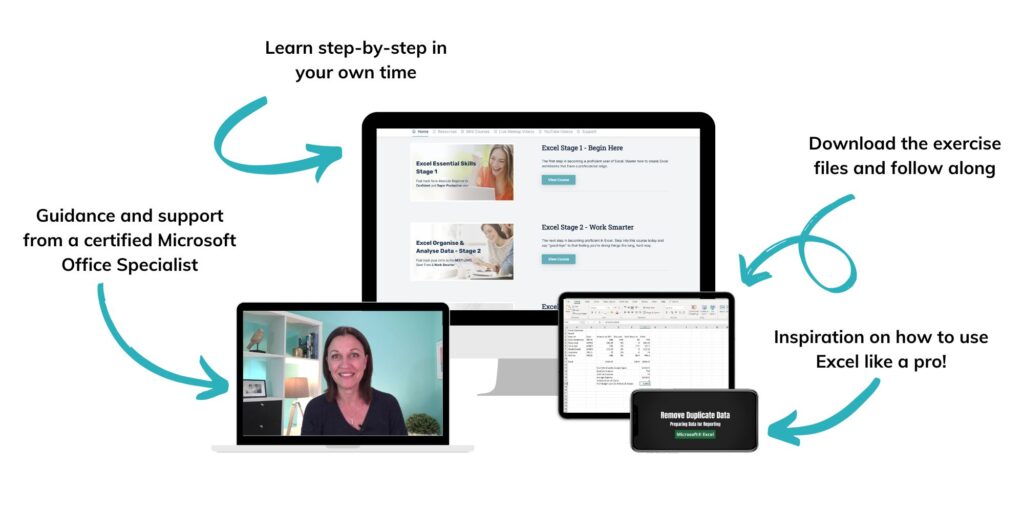
What’s Included in Your Learning Hub Membership?
Everything you need to learn Excel properly — and get help when you need it at work.
Three Structured Excel Courses
Stage 1, 2, and 3 take you from the absolute basics right through to Pivot Tables, XLOOKUP, and Power Query. Each stage is around 11 hours of video content and can be completed in 4 weeks — or take your time, the Hub is always there.
Short Courses
Bite-sized learning on specific topics — Excel Shortcuts, Calculating Percentages, Intro to Recording Macros, and more. Perfect when you need to learn one thing quickly and get back to work.
Search Any Topic, Jump To The Exact Moment
Type any Excel topic and the Hub finds every relevant video. Click any line in the transcript and the video jumps straight to that point. No scrolling, no guessing.
AI Chatbot For Instant Help
Not sure whether to use a filter, a Pivot Table, or the FILTER function? Ask the chatbot. It gives you step-by-step guidance and points you to the exact videos inside the Hub that can help.
Quizzes And Certificates
Not sure where to start? Take a short quiz. Score 100% and get your Certificate of Achievement straight away. If not, you’ll get a personalised report showing exactly where to focus. Certificates of Completion are relevant for Continued Professional Development (CPD) records.
Always Up To Date
When Microsoft updates Excel or Copilot, Sharyn updates the Hub. You’ll be notified when new content is added — so your skills never go out of date.
Pay $59 monthly, or save with an annual subscription

self-paced learning
Hi, I’m Sharyn Baines
I specialise in taking technical Excel concepts and explaining them in plain English — clearly, calmly, and without the bits you don’t need.
Every lesson is focused on what actually matters at work. No fluff, no filler — just solid, practical skills you can use straight away.
Over the years, I’ve trained thousands of people through live and self-paced courses. That means I know exactly where people get stuck, what confuses them, and what finally makes things click. My courses are built around those moments. Here’s what I hear a lot:
“OMG, I’ve never heard it explained like that. I now get it.”
“You make it so easy to understand and follow.”
“I was really scared — now I’m excited.”
I’d love for you to have that same moment, too!
A Clear Excel Skill Pathway Employers Understand
Work through each stage at your own pace — and earn a CPD-relevant certificate when you’re done.
Stage 1 · Beginner
Excel Essential Skills
Go from nervous and winging it to genuinely confident — creating spreadsheets from scratch and knowing exactly what you’re doing.
What you’ll learn
- Navigate Excel and create spreadsheets from scratch
- Enter data accurately and manage files with confidence
- Build formulas — totals, averages, GST, percentages
- Format and print worksheets professionally
- Sort and filter data without breaking anything
- Use Copilot to create, check, and format faster
Stage 2 · Intermediate
Organise And Analyse Data
Move beyond the basics — manage large datasets, write powerful functions, and build spreadsheets that actually work the way you need them to.
What you’ll learn
- Sort, filter, and subtotal large tables of data
- Fix formula errors and copy formulas correctly
- Master IF, SUMIF, COUNTIF, and date functions
- Apply Conditional Formatting for instant visual alerts
- Protect files to prevent unauthorised changes
- Use the latest Microsoft 365 functions: FILTER, SORT, UNIQUE
Stage 3 · Advanced
Combine, Analyse and Report
Produce reports that actually impress — master XLOOKUP, Pivot Tables, Power Query, and the tools that save hours of manual work every week.
What you’ll learn
- Import and clean data from CSV and text files
- Master XLOOKUP, INDEX, and MATCH
- Prepare and clean data for accurate reporting
- Create dynamic tables that update automatically
- Build Pivot Table reports and Pivot Charts
- Apply Data validation to ensure fast, accurate input
- Use Power Query to combine data from multiple sources
Start Your Excel Membership Today
Choose the plan that works for you — change or cancel anytime.
Annual
Just $49.17/month, billed annually
Start My Annual MembershipMonthly
Cancel anytime — no lock-in contracts
Start My Monthly Membership14-Day Money-Back Guarantee
Try the Excel at Work Learning Hub risk-free. If it’s not the right fit within 14 days, email Sharyn for a full refund — no questions asked.
What happens after you join
- You receive a welcome email with your login details — usually within a few minutes.
- Log in to the Excel at Work Learning Hub from your PC — instant access, no setup calls.
- Take the placement quiz, find your level, and start your first lesson.
What you need
- A Windows PC (courses are designed for desktop — not tablets)
- Internet access
- Microsoft Excel (Microsoft 365 desktop version)
Contact Sharyn to ask about annual subscription options:
- purchasing by GST invoice
- special group discounts
What’s in Each Course
Click any stage below to see the complete lesson-by-lesson breakdown.
Stage 1 · Beginner
Excel Essential Skills
Getting Started
- Get the most out of your course
- Download resources and cheat sheets
- Tips for making the most of the videos
- How to join live meetups with Sharyn
Module 1 – Introducing Excel
- Start Excel and explore the workbook and worksheet layout
- Understand the key parts of the Excel screen
- Learn how Excel organises data for easy navigation
Module 2 – Entering Data
- Select and move around your workbook with ease
- Enter, delete, and replace data quickly
- Use Undo and Redo to fix mistakes instantly
- Adjust column width for a clean, readable layout
- Speed up entry with AutoComplete
Module 3 – File Operations
- Save your file and create copies with Save As
- Open existing workbooks and start new ones
- Understand AutoSave in Microsoft 365
Module 4 – Performing Calculations
- Create formulas step by step
- Calculate percentages and GST
- Use SUM, AVERAGE, MAX, MIN, and COUNT
- Copy formulas using AutoFill for speed
- Copilot assistance with formulas
Module 5 – Modifying The Worksheet
- Insert, delete, and hide rows or columns
- Move and copy information
- Lock cell references with absolute references
- Replace formulas with values for fixed results
Module 6 – Formatting
- Control number formats so data displays correctly
- Apply font and alignment formatting
- Use Format Painter and remove unwanted formatting
- Use Copilot to quickly apply professional formatting
Module 7 – Printing
- Set up print areas and adjust print settings
- Control page breaks and scaling
- Preview and print for professional results
Module 8 – Sorting And Filtering
- Sort data using simple and advanced options
- Filter to show only relevant rows
- Create custom filters to drill down to specific data
Passing The Finish Line
- Complete a quiz to claim your Certificate of Achievement
- Claim your Certificate of Completion
- Final message from Sharyn with tips for next steps
Stage 2 · Intermediate
Organise And Analyse Data
Getting Started
- Get the most out of your course
- Download resources and cheat sheets
- How to join live meetups with Sharyn
Module 1 – Working With Large Tables Of Data
- Freeze rows and columns to keep headers visible
- Use Flash Fill to split or combine data automatically
- Sort by one or multiple levels
- Insert and manage subtotals
- Filter data and create custom filters
- Troubleshoot filtering issues
Module 2 – When Formulas Don’t Calculate As Expected
- Understand how Excel calculates (and why brackets matter)
- Copy formulas correctly without breaking references
- Create absolute references to lock cells
- Use named ranges for easier, error-free formulas
Module 3 – Using Multiple Worksheets
- Navigate and manage multiple worksheets efficiently
- Group and ungroup sheets for bulk updates
- Link data between sheets and files for dynamic updates
- Troubleshoot and break links when needed
Module 4 – Time-Saving Functions
- Use IF, nested IF, AND, and OR functions
- Handle errors with IFERROR and ISERROR
- Summarise data with SUMIF, SUMIFS, COUNTIF, COUNTIFS
- Work with dates using EDATE, TODAY, and NOW
- Use Copilot for formula assistance
Module 5 – Conditional Formatting
- Highlight important data with rules
- Identify duplicates or unique values
- Add Data Bars, Colour Scales, and Icon Sets
- Create custom rules using formulas
Module 6 – Protecting Your Work
- Unlock and protect specific cells
- Protect worksheets and workbooks
- Add passwords to control access
Module 7 – New Microsoft 365 Functions
- Use IFS for multiple conditions
- Filter data dynamically with FILTER
- Sort with SORT and SORTBY
- Create unique lists with UNIQUE
- Fix SPILL and CALC errors
Passing The Finish Line
- Complete a quiz to claim your Certificate of Achievement
- Claim your Certificate of Completion
- Final message from Sharyn with tips for next steps
Stage 3 · Advanced
Combine, Analyse and Report
Getting Started
- Get the most out of your course
- Download resources and cheat sheets
- How to join live meetups with Sharyn
Module 1 – Importing And Saving Text Files
- Control how CSV files open in Excel
- Import fixed-width text files accurately
- Save imported files as Excel workbooks
- Export Excel data as text files for sharing
Module 2 – Lookup Functions
- Use XLOOKUP for powerful, error-free lookups
- Create flexible lookups with MATCH and INDEX
- Handle approximate matches and advanced scenarios
- Copilot lookup function assistance
Module 3 – Preparing Data For Reporting
- Find and remove duplicate data
- Convert numbers stored as text into real numbers
- Split and combine cell content with text functions
- Extract text with LEFT, RIGHT, MID, TEXTBEFORE, TEXTAFTER
- Clean data with Flash Fill and Copilot
Module 4 – Creating Dynamic Tables
- Insert and format tables for easier analysis
- Use built-in filters and slicers for interactive views
- Create calculated columns for automatic formulas
- Add a Total Row to summarise data instantly
- Convert a table back to a normal range when needed
Module 5 – Pivot Tables
- Create Pivot Tables to summarise large datasets
- Control layout, subtotals, and grand totals
- Filter with slicers and timelines
- Display data as percentages for comparisons
- Group data by date, category, or time period
- Add Calculated Fields for custom calculations
- Copilot Pivot Table assistance
Module 6 – Pivot Charts
- Create Pivot Charts to visualise your data
- Change chart design and layout
- Create combination charts for comparing data series
- Format for a professional finish
Module 7 – Data Validation
- Create drop-down lists to simplify data entry
- Use data validation to prevent incorrect entries
- Create dynamic drop-down lists that update automatically
Module 8 – Power Query
- Build one report from several CSV files in a folder
- Combine data from multiple Excel files
- Append and consolidate data from multiple worksheets
Passing The Finish Line
- Complete a quiz to claim your Certificate of Achievement
- Claim your Certificate of Completion
- Final message from Sharyn with tips for next steps
Frequently Asked Questions
Everything you need to know before joining the Hub.
Try it risk-free for 14 days
You’ve seen what’s included. You know the price. The only thing left is to give it a try — and with a 14-day money-back guarantee, there’s really nothing to lose. If it’s not right for you, email Sharyn for a full refund. No questions asked.
See Membership PlansFrom $59/month Cancel anytime No lock-in contracts 14-day guarantee